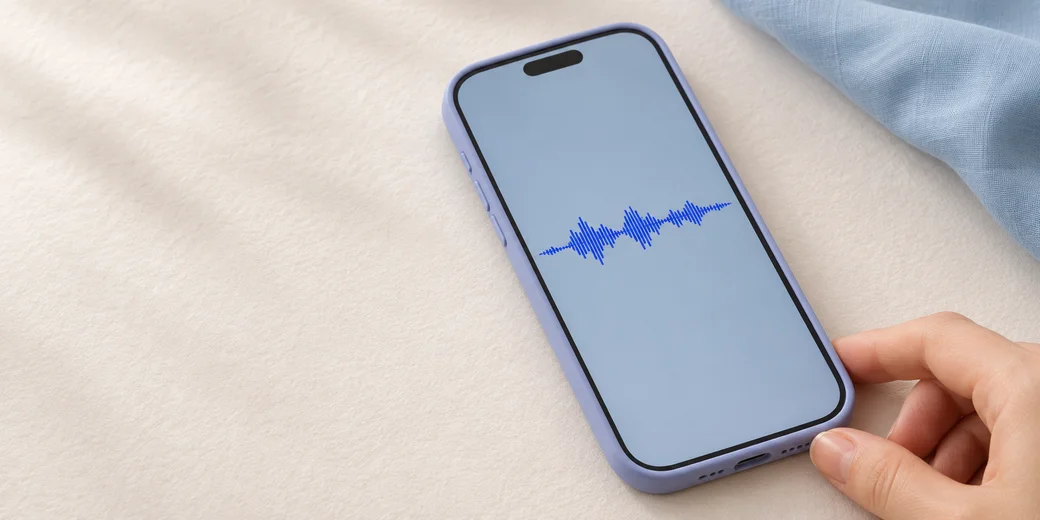
Check the start and end of a cut
Hear a real voice note, compare its cut points, and play the 9.01-second result.
 AudioParcel
Trim audio. Hear the cut.Save your clip as MP3, WAV, or FLAC.
Drop a file here. Supported formats and file limits
Your audio stays on your device.
Choose a voice note, song or audio track. Try the sample to see a trim already set up.
Drag the handles around what you want to keep. Tap the waveform to find a word, then use Check cut to hear the edges.
Save an MP3 to share, a WAV to edit further, or a smaller lossless FLAC.
One mono or stereo file. Most formats allow up to 10 minutes and 128 MB.
16-bit PCM WAV at 44.1 or 48 kHz can be up to 60 minutes and 700 MB. Download up to 10 minutes per clip.
MP3, WAV, M4A, AAC, FLAC, Ogg/Opus, MP4, WebM, 3GP and MKV audio. Available codecs depend on your browser.
For Android recordings, 3GP with AAC has been tested in Chrome and WebKit. 3GP with AMR and standalone AMR depend on browser support.
| Export | Use it for |
|---|---|
| MP3 | Sharing a smaller file. |
| WAV | Editing further with uncompressed audio. |
| FLAC | Keeping the exported 16-bit audio with lossless compression. FLAC standard (RFC 9639) |
Open a recording and drag the handles around the part to keep. Tap within the selection to set the playhead, then press Play to listen. Download MP3 saves a separate file.
Yes. Check cut plays up to two seconds just inside each edge you changed. It shortens the excerpts for short clips. Play starts at the beginning of the selection or at the point you chose on the waveform.
Yes, if your browser can decode the AAC M4A recording. On iPhone, save the recording from Voice Memos to Files, then choose it in AudioParcel and download the section you want as MP3.
AudioParcel opens, previews, and encodes the recording on your device. Your audio, file name, and trim times stay in the browser. Downloading makes a separate copy you can share.
AudioParcel opens MP3, WAV, M4A, AAC, FLAC, Ogg/Opus, MP4, WebM, 3GP and MKV, depending on the audio codecs your browser supports. Most mono or stereo files can be up to 10 minutes and 128 MB. A 16-bit PCM WAV at 44.1 or 48 kHz can be up to 60 minutes and 700 MB, with clips up to 10 minutes per download.
Choose MP3 for sharing, WAV for uncompressed editing, or FLAC for lossless compression. WAV and FLAC exports use 16-bit, 44.1 kHz audio by default. Large or long 16-bit PCM WAV sources keep their original 44.1 or 48 kHz sample rate. Exporting a lossy source to FLAC preserves its decoded audio.
No. You can choose a file, preview a selection, and download an MP3, WAV, or FLAC for free without creating an account.
Maintained by AudioParcelUpdated